Trontop: Task Manager was lagging on my NASA PC
Windows 11 Task Manager kept showing stale readings and lagging on my powerful PC. So I built Trontop: useful monitoring, Discord-inspired themes, and a goal of Speccy-level detail.
Windows 11 Task Manager was being a fucking turd. That’s why I made Trontop.
On my machine, the graphs and results would get stale. I’d see 100% CPU usage, close Task Manager, reopen it, and find the machine was actually idle. The readings had gotten stuck. On top of that, Task Manager itself was getting laggier.
Task Manager lags on my NASA beef PC. That’s stupid. This is a machine with 64 GB of RAM and an RTX 5070 Ti. I want to open a system monitor and trust that it is showing me what’s happening now.
So I started building my own. Then the wish list became: a functional replacement, a pretty one, and hardware information with Speccy-level detail. That last part is still a goal I’m working toward. The starting point was frustration with a tool I needed every day.
Get Trontop for Windows or read the source.
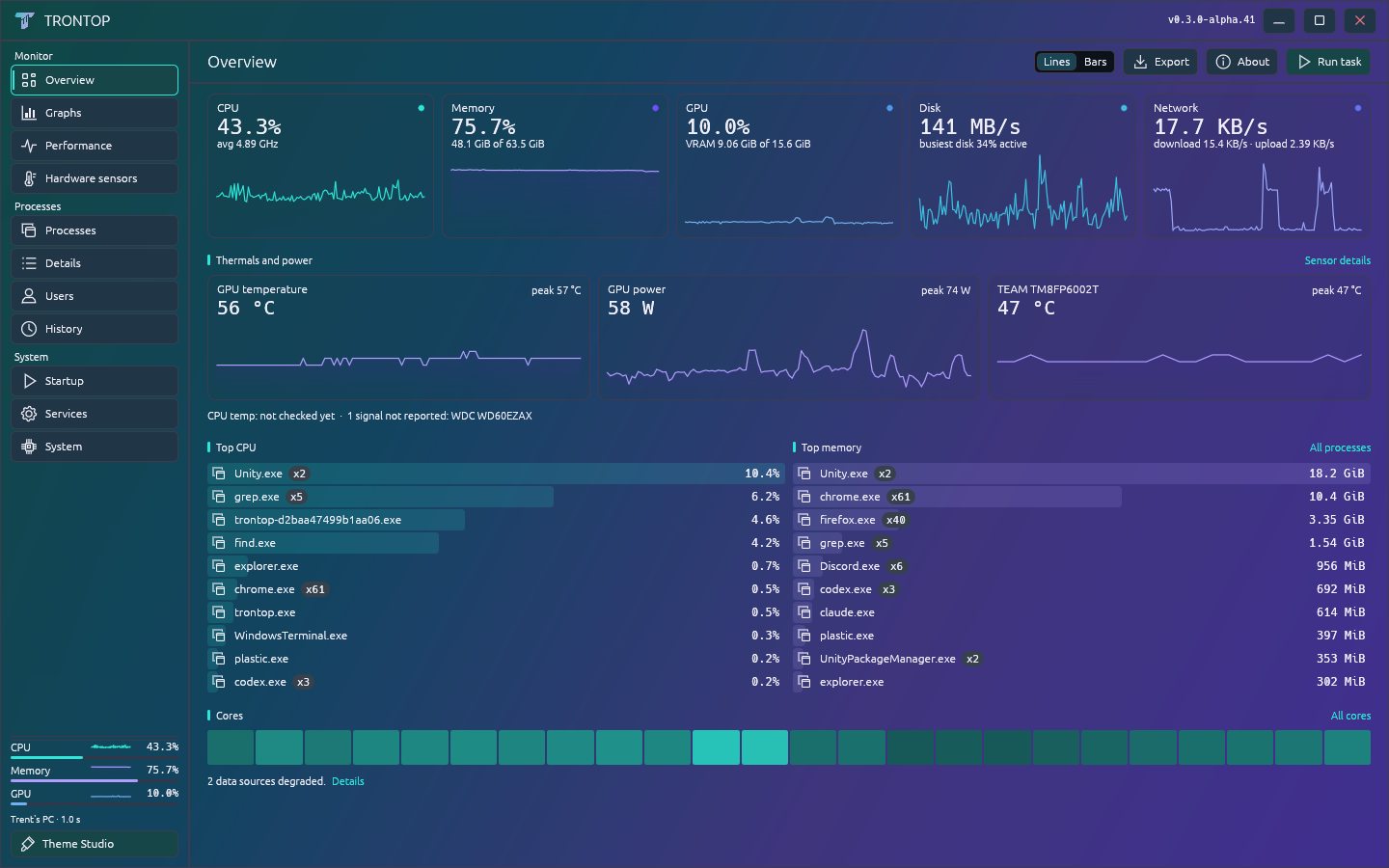 Real CPU, GPU, memory, disk and network readings from my PC, rendered through Trontop’s UI. Personal paths and command lines are omitted.
The page I actually leave open
I keep coming back to Overview. CPU, memory, GPU, disk and network are all there, with available temperatures and power readings, top processes, and per-core activity. I use this page constantly while working.
Trontop is a native Windows application built in Rust with egui. When a provider cannot supply a reading, the UI needs to tell me that. A missing or stale value should not quietly pretend to be a fresh one.
The process view has a searchable tree, a flat-list option, and an inspector that stays with your selection. End task is near the top of the inspector and asks for confirmation. Priority and affinity controls use Windows permissions and validate the process identity before acting.
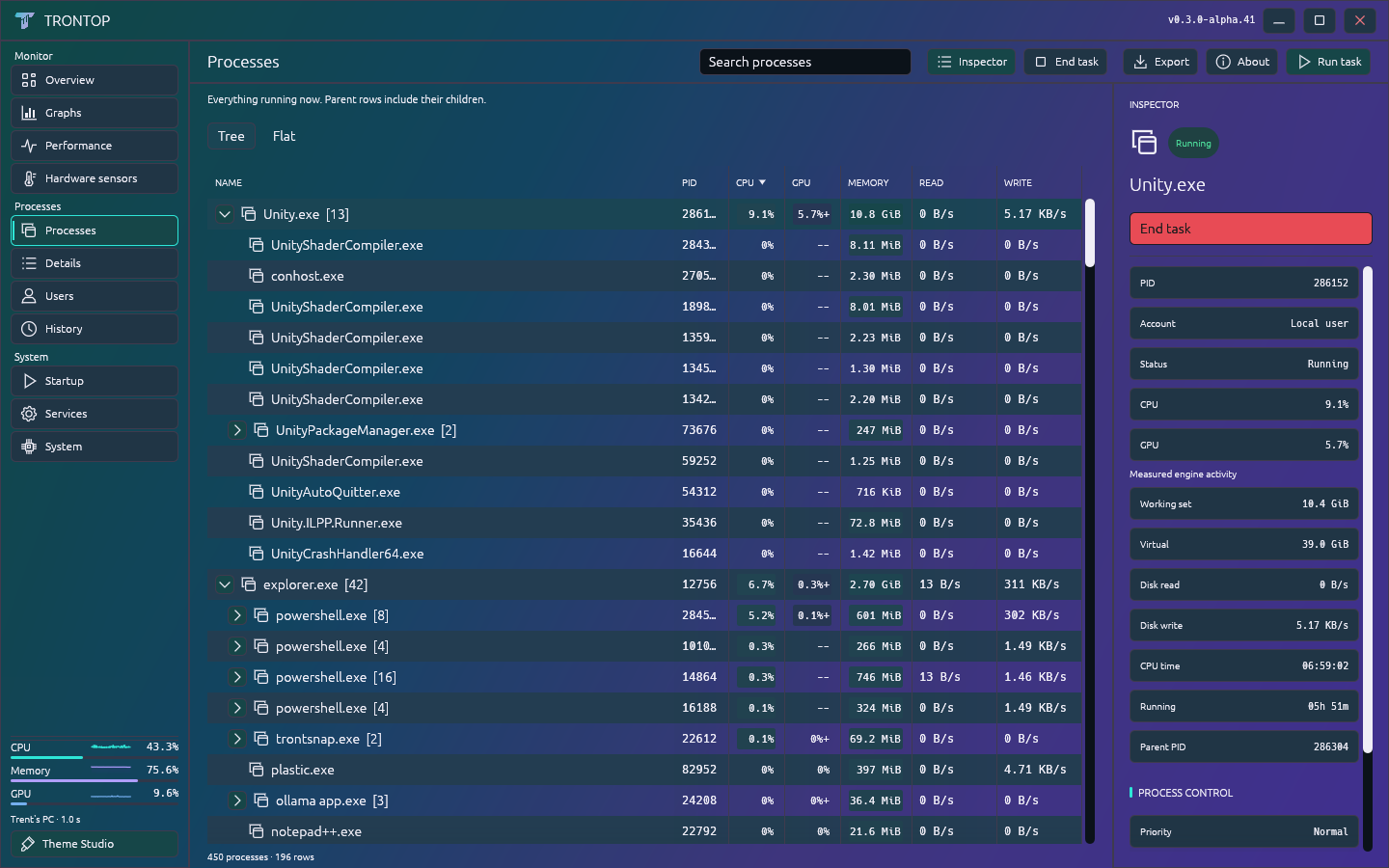
There are separate views for graphs, performance, hardware sensors, services, startup inventory, history, users, and system information. It doesn’t have complete Windows Task Manager parity. Missing sensor readings stay missing, rather than getting replaced with made-up numbers.
The system tray icon is a little scrolling CPU graph. It was already animated when I caught myself asking for an animated icon. I briefly considered replacing it with a number. The graph stayed.
Discord was the theme inspiration
My theme system is inspired by Discord’s. I wanted that level of personality in the tools I leave open all day, including a task manager.
Theme Studio lets you drag gradient stops, edit their colors and positions, change the intensity, and control how much frost sits over the background. Dark and light modes remember separate frost settings.
Text contrast is adjustable too. That made a big difference: stronger colors are much more useful when the text stays readable. There are font and scale controls, named saves, and JSON import and export.
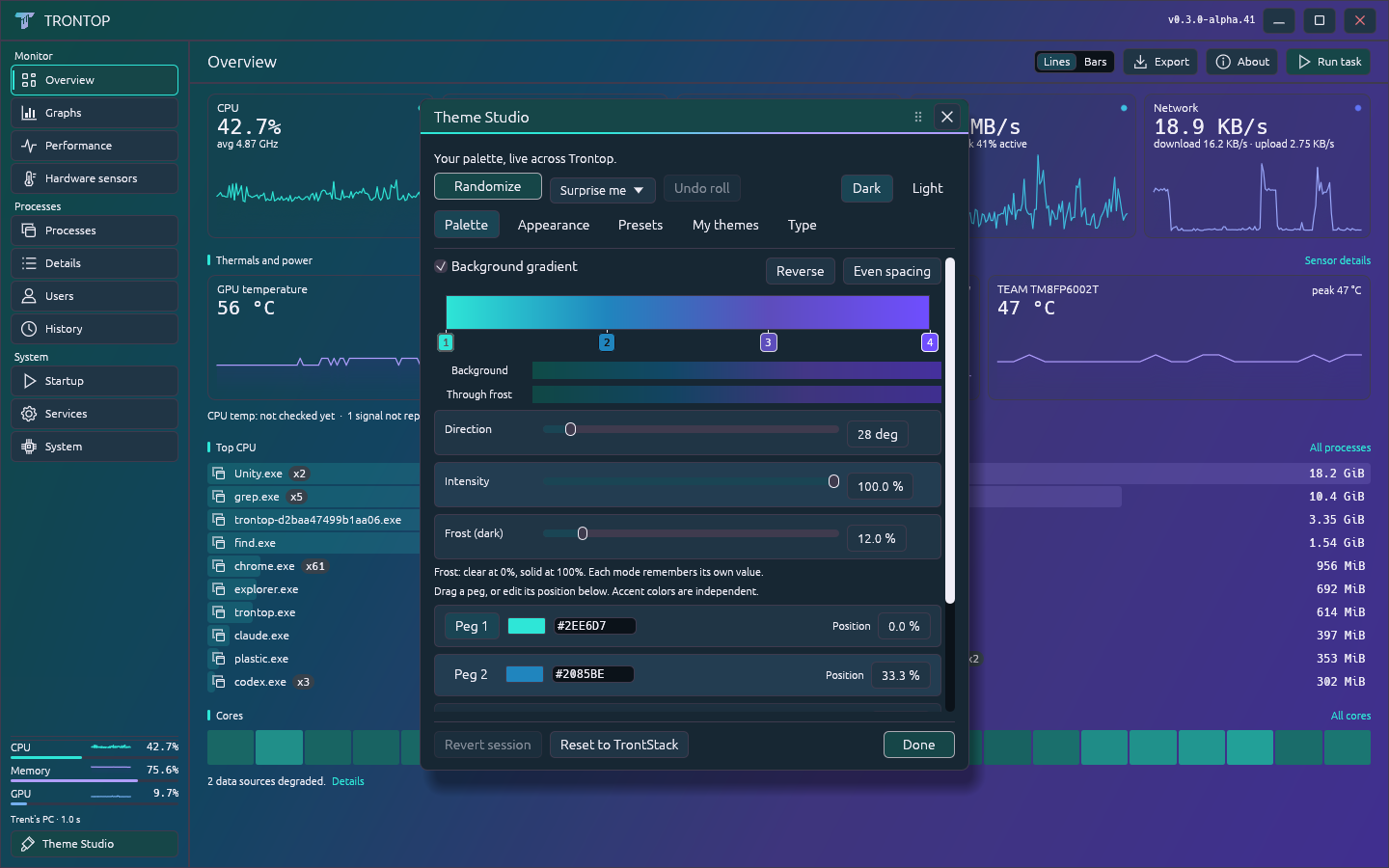
ColorMagic can generate a palette, and there’s an undo button for a roll you don’t want. The new T logo follows the theme. A few very dark random palettes exposed a contrast problem there, so its rendered colors now get their own contrast correction.
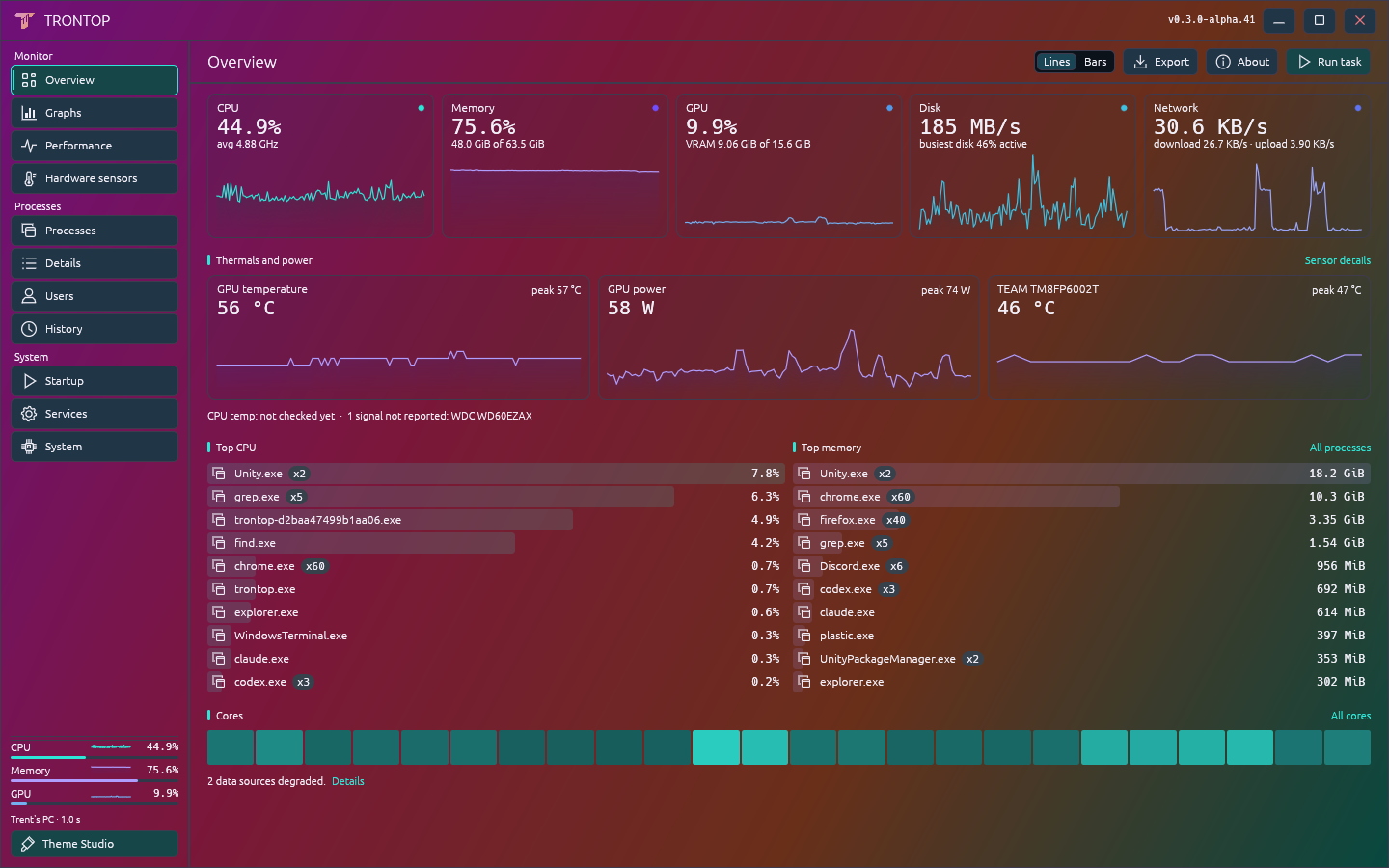
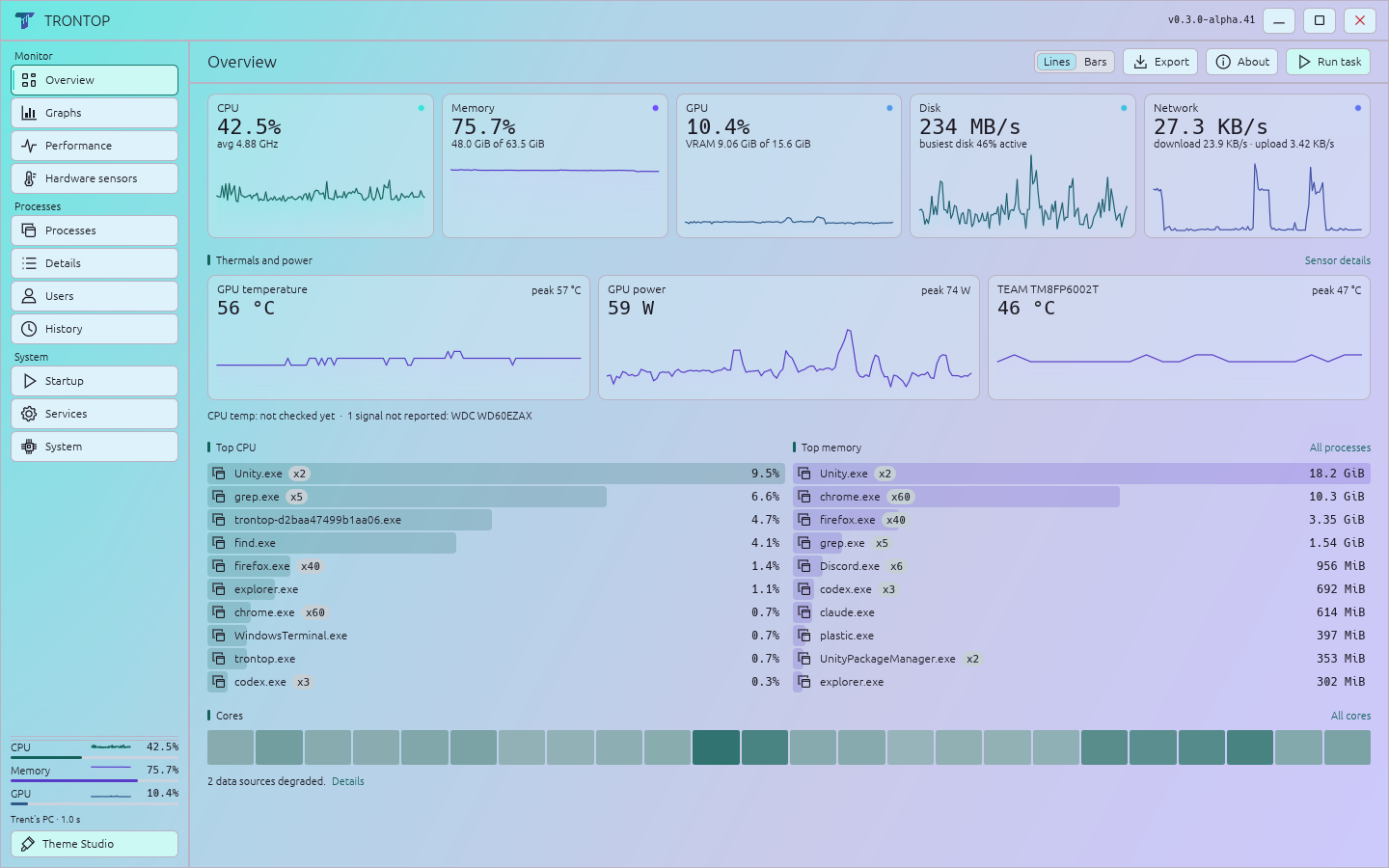
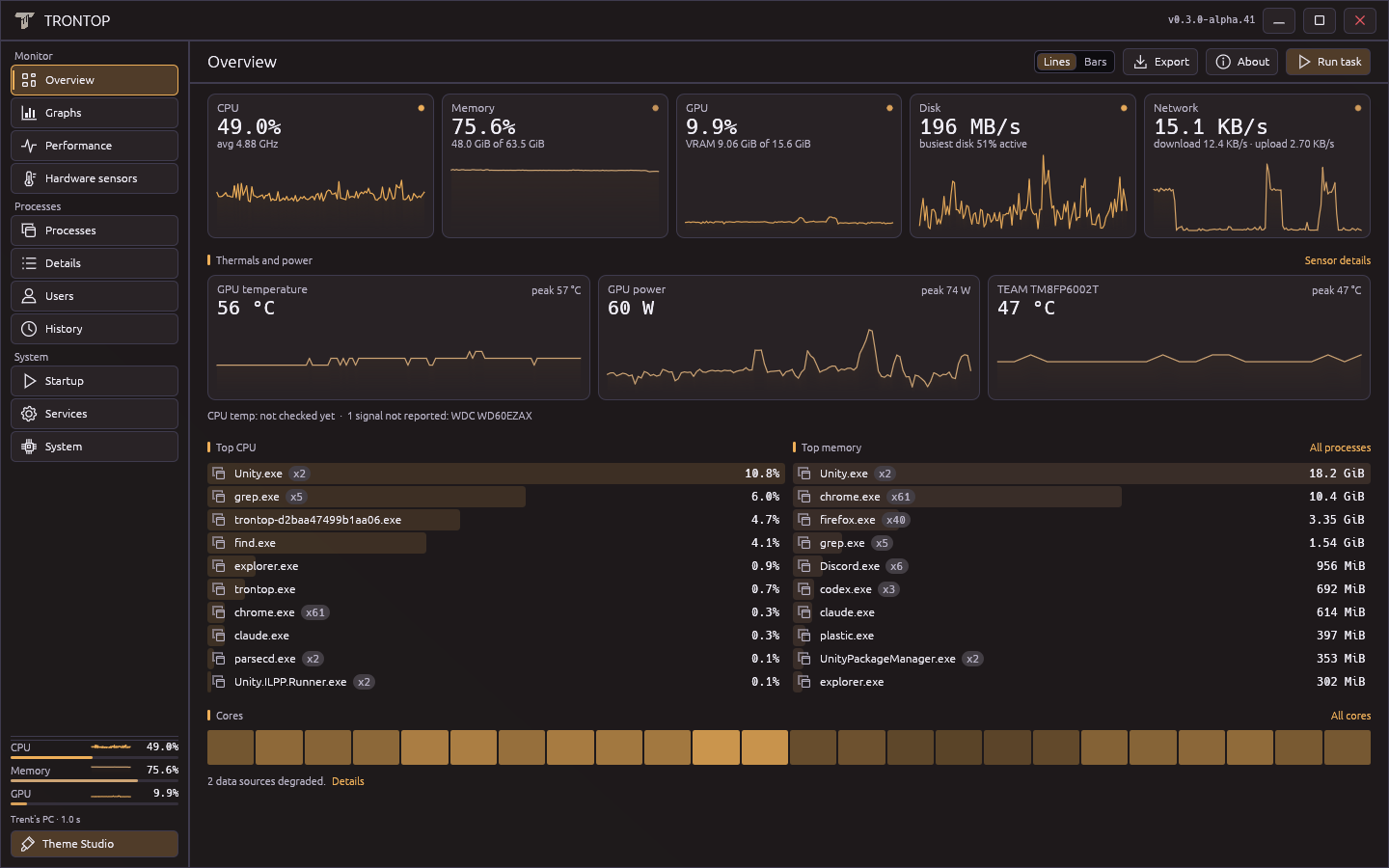
There are twelve downloadable looks on the product page. Those screenshots and theme files are generated together, so you can import the actual settings behind a shot. The same automation produces the social preview image.
Lines or bars are a toolbar toggle. Dialogs can be moved, their close buttons have the bright outlines used elsewhere in the app, and the process inspector keeps End task within reach. Small things, but they add up when you’re using it all day.
Free to use, with the source available
Trontop is free for personal and workplace use. There is no account or telemetry upload. The portable executable keeps its settings and local failure records under your Windows user profile; exporting system information is an explicit action.
The source is available under Apache 2.0 with Commons Clause 1.0. You can inspect, build and modify it, and share it subject to the license and attribution requirements. The Commons Clause restricts selling products or services whose value derives entirely or substantially from Trontop. This is a source-available license, not an OSI open-source license. Third-party components keep their own licenses. Read the complete terms.
Try the preview
This first public build is 0.3.0-alpha.41 for Windows 11 x64. It’s unsigned, and it’s still a development preview. Hardware coverage, clean-machine checks, and some native service-action and dialog tests remain open. CPU temperature requires a supported external sensor source; other readings depend on your hardware and drivers.
Download the ZIP, extract it, and run trontop.exe. The release includes its SHA-256 checksum, license, notices and known limitations.
Download and see the theme gallery. If something breaks, open an issue with the version and the support report from About. Check screenshots and exports for private information before posting them.