PowerShell Manager: my terminal pile finally has a layout
Why I built a window arranger, and how it grew into weighted grids, manual terminal ordering and a ColorMagic Theme Studio. Updated for PowerShellManager 0.4.1.
Updated September 24, 2026: the original tool has a much better UI now. This is an update to the same post, with current screenshots and a new Windows download.
Too many terminals, too much dragging
I run a lot of terminal windows. PowerShell sessions, Windows Terminal windows, the occasional cmd. They pile up and overlap. Every time I want to see several side by side, I end up dragging and resizing them, trying to eyeball the spacing. Windows Snap helps, but I want a 3-by-2 grid sometimes. Other times I want one big workspace and a few smaller ones beside it.
I wanted a tray app that finds the windows and puts them where I want with one click. That became PowerShell Manager.
The layout stuff was the good part from the start. The old UI really needed work. After giving Trontop its theme studio and visual pass, I wanted the same treatment here. Keep the useful grid tools. Make the rest of it something I actually like looking at.
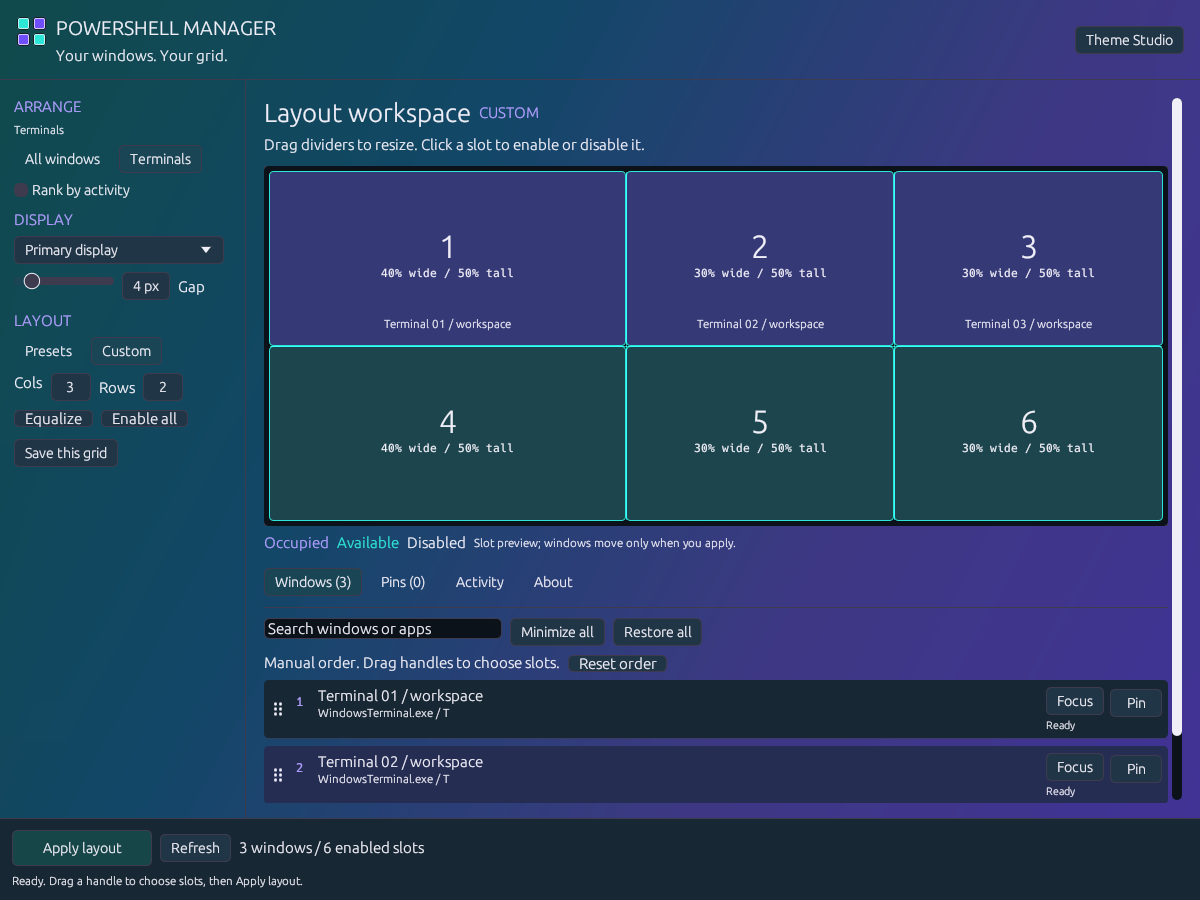 The actual app UI. Detected terminal windows come from my desktop; their titles are anonymized.
The order should be my choice
I had a terminal working on Avatar hand grips that I wanted in slot 1. There was no good way to say that. Activity ranking is useful sometimes, but I also want to pick up a window in the list and put it first.
Now each row has a small drag handle. Move a terminal up or down, see its slot number, and hit Apply layout. Dragging switches to manual order, so activity ranking does not quietly put it somewhere else again. The preview shows which window is going into each cell.
Pins got an audit too. Pinning one Windows Terminal used to match the executable, which made the other terminals look pinned as well. That was a bug. A pin now reserves one window. Conflicting pins return windows to the queue with a warning; they do not silently lose them. Slot numbers stay attached to the grid when other cells are disabled.
Keep the layout tools
There are 21 presets: regular grids, columns, rows, left/right splits, and larger main panes with smaller side panes. Custom grids go up to 8 columns by 8 rows. Drag a divider to give one workspace more room. Click a cell to leave it empty. Save a grid when it feels right.
Choose Terminals for the focused list, or All windows for editors, browsers and other apps. Pick the display and gap. Nothing moves while you edit the preview; Apply does the actual arrangement. Ctrl+Alt+G and the tray’s current-layout action use the current settings too.
The window itself can be much smaller now, with the scaling control still there. The list has clearer alternating rows, aligned actions and readable window titles.
It gets to be pretty too
My theme studio idea is inspired by Discord’s theme system. I want more than a single accent color. I want to push the intensity, control the frost, change the font and keep the text readable while the background gets ridiculous.
ColorMagic generates palettes. The four gradient pips are draggable. There are controls for intensity, direction, frost, tint, text contrast, outlines, fonts and scale. Undoing a palette roll keeps your other adjustments. Save a theme, export its JSON, or share it with Trontop.
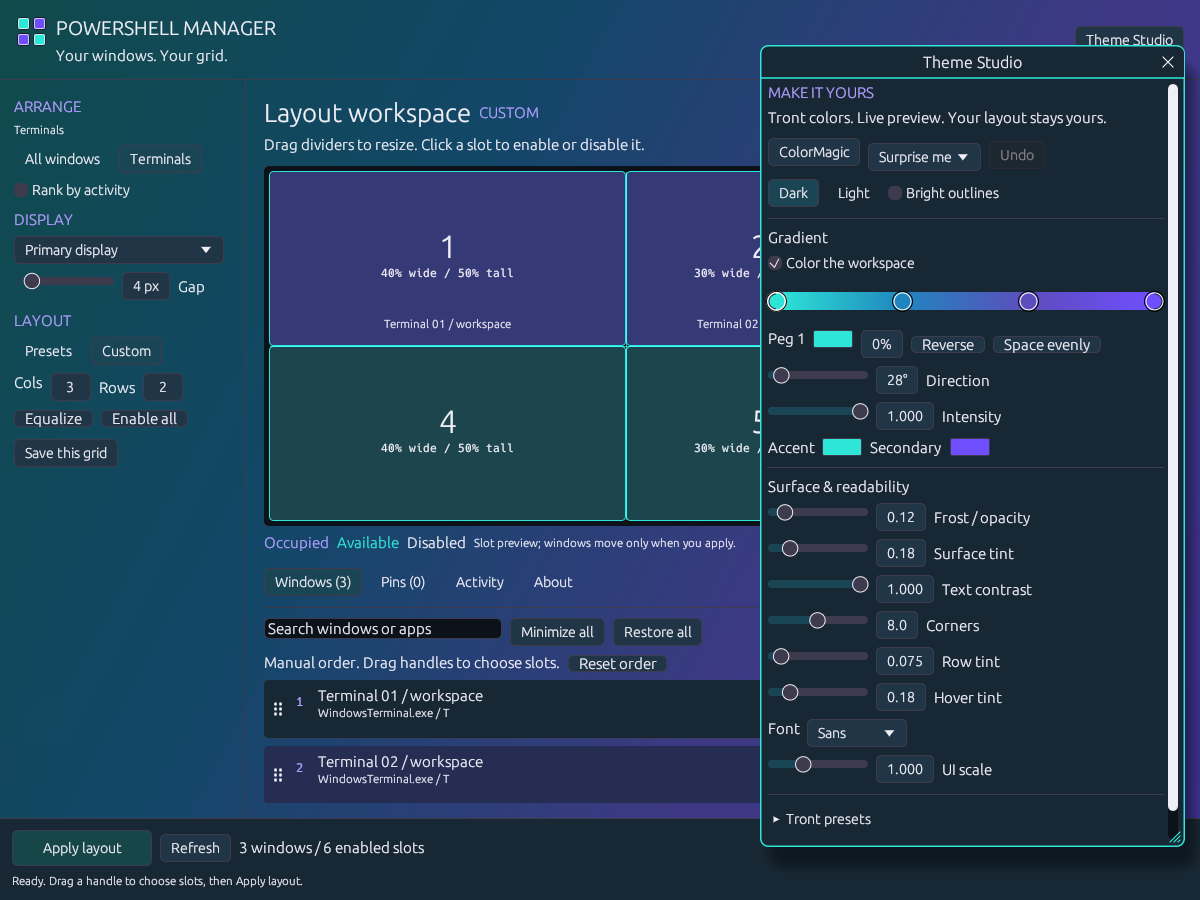
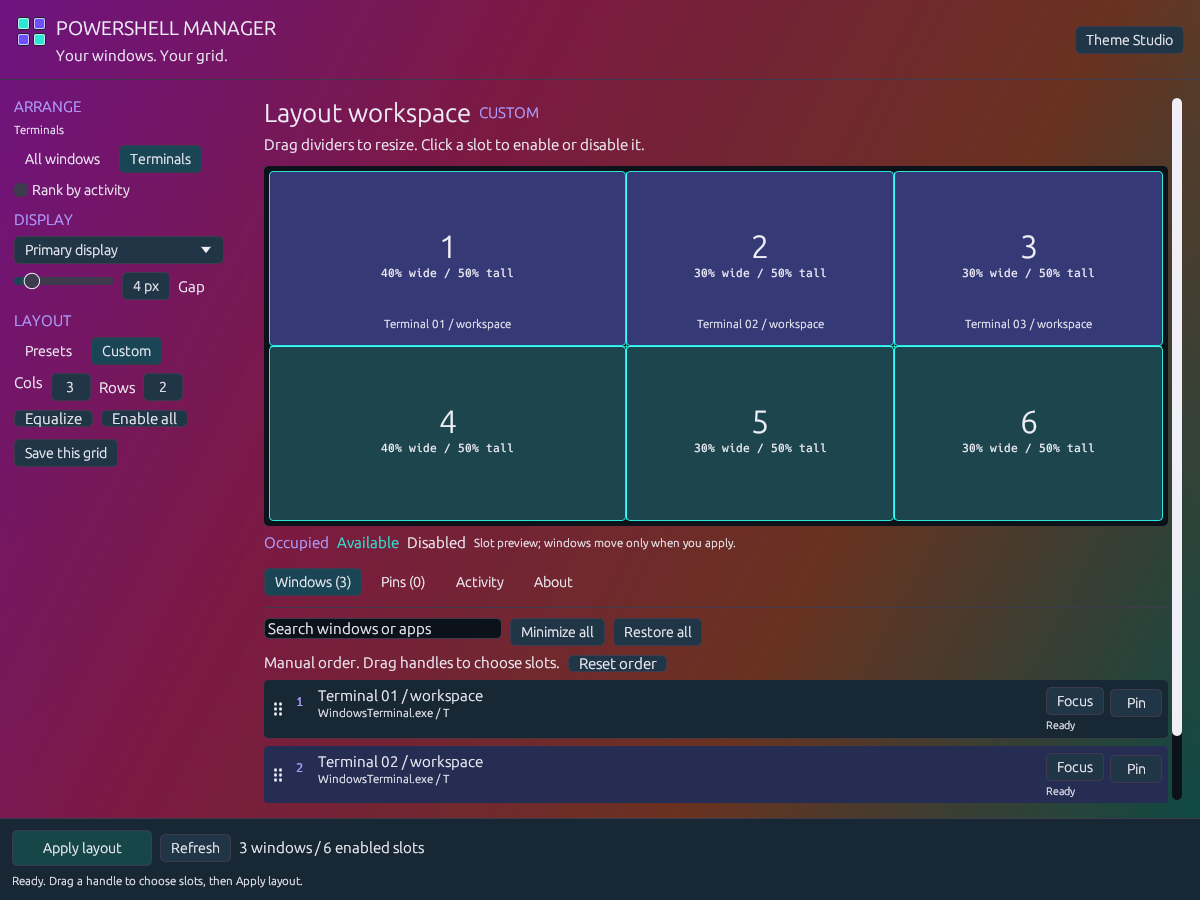
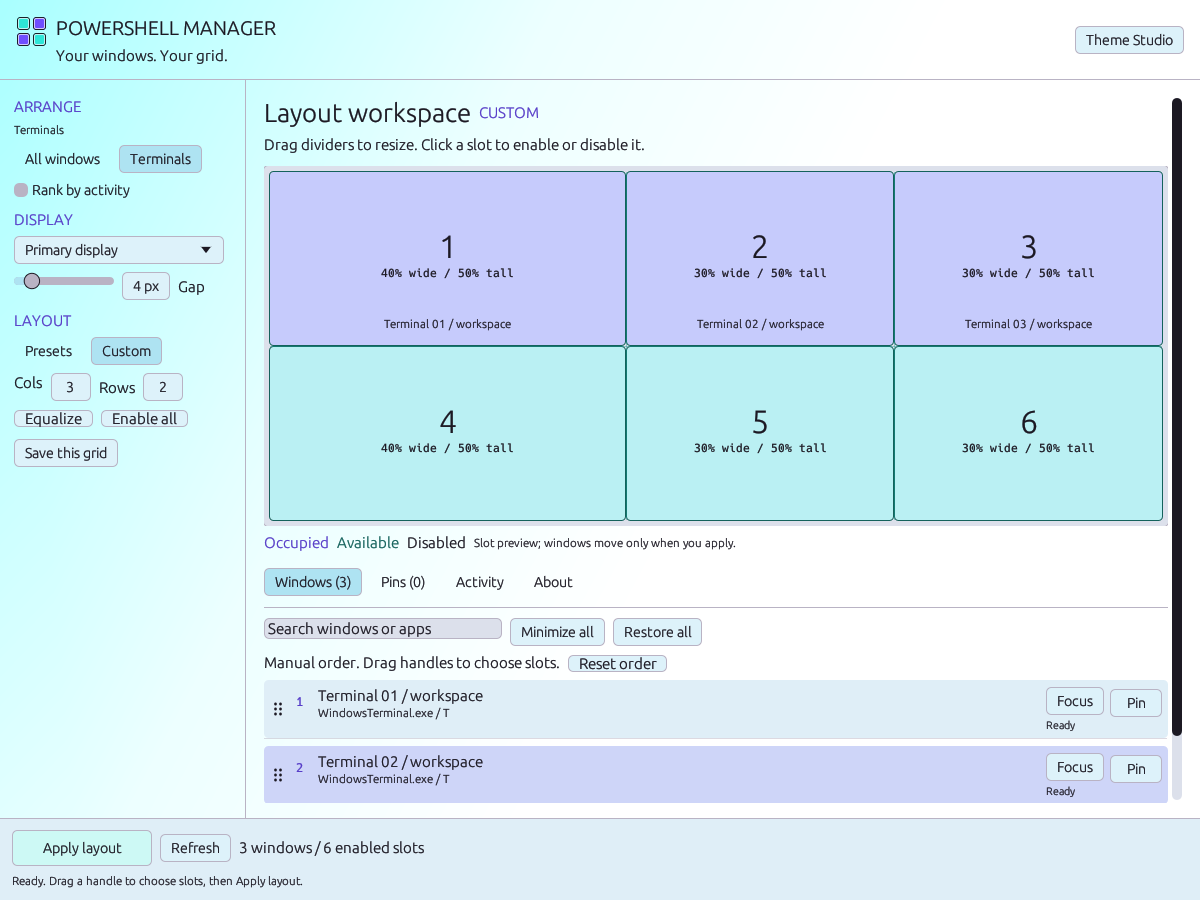
The four-square logo fits what the app does. It follows the theme in the app and tray, with a dark and bright edge to keep it visible. My face is still in About.
A pass over the bits that can go wrong
Before this release, the audit covered individual pins, pin collisions, disabled slots, refreshes, actual drag controls, malformed layouts and the tray’s settings. It also caught the overlapping list rows and a hidden-window repaint issue in this version of eframe.
The automated native tests create their own hidden windows and check where the placement code puts them. UI tests drive the actual egui controls without sending input to my desktop. That is useful evidence, not a promise that every Windows application or monitor setup behaves the same. Some apps enforce minimum sizes or reject positioning because of permissions. Broader mixed-DPI and clean-machine checks remain open. The audit receipt lists the scope.
Download
Get PowerShell Manager for Windows
Extract the ZIP and run powershellmanager.exe. Quit an older copy from its tray menu first. Normal mode has Apply enabled; --preview is deliberately read-only. The build is unsigned, so Windows may show an unknown-publisher warning.
For scripts, powershellmanager.exe --headless 3x2 applies a layout immediately and exits. That is a real window-moving action, not a dry run.
The source is public. It uses the same Apache 2.0 plus Commons Clause terms as Trontop: free personal and work use, keep the credits, with restrictions on selling products or services based substantially on it. That makes it source available, not OSI open source. Read the full terms.
More screenshots and downloadable themes are on the product page.