Device History: WTF Just Disconnected?
Real-time USB device monitor for Windows. Glassmorphism UI with 4 themes, device database, storage info, and CLI mode. Built with Rust + Tauri v2 + Svelte 5.
Update (v0.8.3): Device History has been completely rewritten with Tauri v2 + Svelte 5. New glassmorphism UI, 4 themes (Neon/Dracula/Catppuccin Mocha/Pastel), storage detail panels with capacity bars, taskbar flash + toast notifications on events, and auto-updating version display. Get the latest version.

You know that moment when your VR headset drops out mid-session, or your game controller just vanishes, and you’re staring at the screen wondering what the hell happened? I built Device History because I got tired of asking “WTF just disconnected?” and having no answer.
It’s a single .exe. Download it, run it, done. No installer, no setup, no dependencies. It lives in your system tray and watches silently.
The Problem
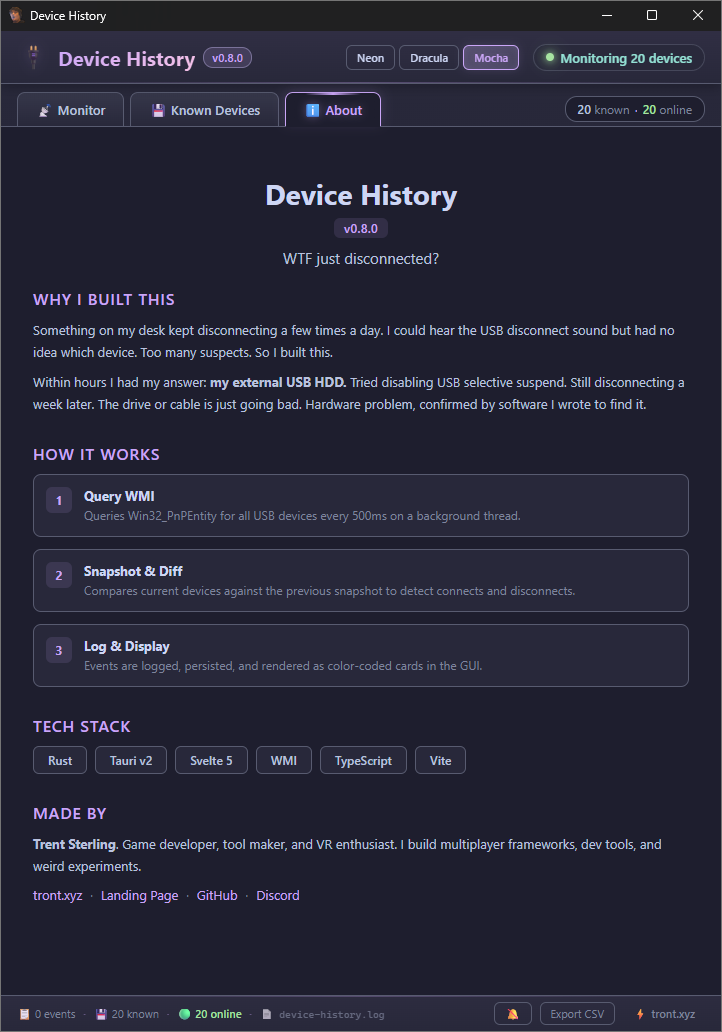
I work with a lot of USB devices - VR headsets, Quest Link cables, Wacom tablets, game controllers, audio interfaces, keyboards, mice. Things disconnect randomly. Something on my desk disconnects a few times a day - I’m not even sure which device it is yet. Could be my Wacom, could be this old USB HDD I’ve got. Windows gives you a tiny toast notification that disappears in seconds, and the Event Viewer is a nightmare to dig through for USB events. I wanted something that just sits there, watches, and tells me exactly what happened. Now I’ll know.
What It Does
Device History polls Windows Management Instrumentation (WMI) every 500ms on a background thread, takes a snapshot of all connected USB devices, and diffs against the previous snapshot. When something changes, it logs it to a file and shows it in a glassmorphism GUI with color-coded event cards.
Each event card shows:
- Timestamp
- Connect (green) or disconnect (red) with a colored left accent bar
- Device name
- VID:PID identifier
- Device class (USB, HIDClass, Bluetooth, etc.)
- Manufacturer
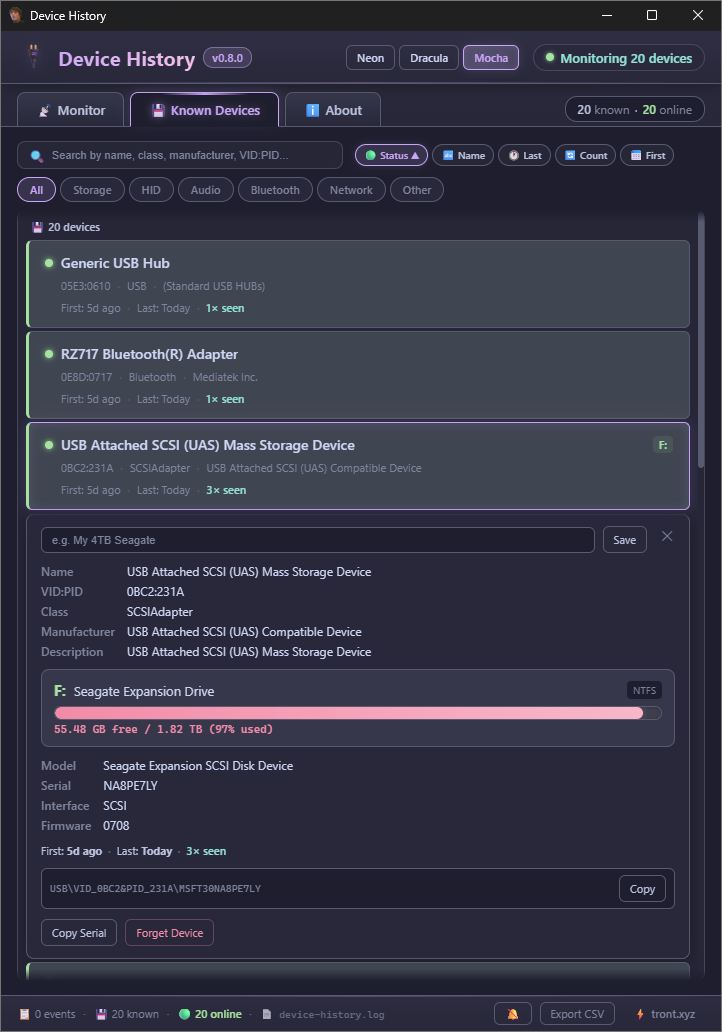
The device list panel shows everything currently plugged in. Click any device to see full metadata, storage capacity bars, serial numbers, and firmware info.
The Neon Treatment
I’ve been applying the tront.xyz aesthetic to my tools lately - deep dark backgrounds, neon accents, rainbow gradients. Device History has three themes you can switch between:
- Neon - the full tront.xyz experience: deep dark background, purple/teal/green neon accents, rainbow gradient separators
- Dracula - classic Dracula color palette
- Catppuccin Mocha - softer, warmer tones
The theme picker sits in the header bar. Click and it switches instantly with smooth 300ms transitions across all glassmorphism panels.
Features
- Known Devices Database - remembers every device ever connected with first/last seen timestamps and connection count
- Storage Detail Panels - click any storage device to see animated capacity bars, model, serial, firmware, interface type
- Device Nicknames - rename “USB Composite Device” to “Quest 3 Link Cable”. Persisted across sessions
- Search & Sort - find devices by name, VID:PID, class, manufacturer. Sort by status, name, last seen, count, first seen
- CSV Export - export your entire event log
- Sound Notifications - optional audio beep on connect/disconnect
- System Tray - minimize to tray, background monitoring, double-click to restore
- CLI Mode -
--clifor colored terminal output. Same monitoring, no GUI - File Logging - persistent log at
device-history.log - Update Checker - checks GitHub releases on startup
- Keyboard Shortcuts - Escape to close panels, 1/2/3 to switch tabs
Tech Stack
- Rust + Tauri v2 - backend, WMI queries, system tray, IPC
- Svelte 5 + TypeScript - reactive frontend with
$state/$derivedrunes - Vite - dev server with hot reload
- WMI -
Win32_PnPEntity+Win32_DiskDrive+Win32_Volumequeries
The architecture: Rust backend polls WMI on a background thread, diffs snapshots, and pushes device-update events to the Svelte frontend via Tauri IPC. Known devices and preferences are persisted to a local JSON database.
Get It
Grab the .exe from the releases page and run it. That’s it.
Or build from source:
1
2
3
4
git clone https://github.com/TrentSterling/device-history
cd device-history
npm install
npx tauri build
Windows only (WMI is a Windows API).
This started as a quick afternoon project to find a mystery disconnecting device (it was my Seagate HDD). Then I rewrote it from eframe/egui to Tauri v2 + Svelte 5 because I wanted a proper modern UI. Sometimes the best tools are the simplest ones. Next time something disconnects, at least I’ll know what it was - and I’ll have named it something I can actually recognize.